

About ZWIBook
Standards Foundation


ZWIBook’s own About page, from the desktop app. On this website the books come from our server, not a thumb drive, and your bookshelf, bookmarks, highlights and notes are kept in this browser.
ZWIBook v1.1 is a user-friendly digital library application. The software can be used to find and read books, highlight them, take notes, do research, and more. The ZWI format is a self-contained ZIP file originally designed for encyclopedia articles. ZWIBook allows users to access the vast collection of texts from Project Gutenberg as of July 2, 2024. With over 69,000 texts—primarily books published before 1920—ZWIBook was written to show off the usefulness of the ZWI file format. All of the book ZWI files can be easily found in the /book_zwis directory on the thumb drive.
We, the Knowledge Standards Foundation (KSF), are a 501(c)(3) nonprofit technical organization that is attempting to create the Encyclosphere, which organizes, disseminates, and promotes free and decentralized knowledge. We wanted to give donors a compelling reason to support our efforts, by involving them in the preservation of knowledge.
If enough people have these drives, we will have made the digital censorship of these books, at least, essentially impossible. The preservation of knowledge is what the KSF stands for. If there is a solid demand, we might make a version containing augmented with free encyclopedias (a greatly expanded offline version of our Oldpedia.org). Please note that the KSF has no special relationship with Project Gutenberg, and we use their files according to their generous license (on which, see below).
We urge you to make a backup, as soon as possible, of both the data and software. Feel free to distribute copies to family members. We know we can't stop you and you will be serving the cause of free knowledge by doing so, so please, please do it! If it is convenient to you, of course we'll be happy to sell more ready-made drives; the process of transferring this amount of data without error is not easy. But your local geek should be able to do it.
Table of Contents
↑
 The Reader: read a book
Features:
- Search or browse (see below) to open a book.
- Your last-read location is automatically saved.
- There are page

 buttons.
 - To add a bookmark, hover over a paragraph. Click the bookmark in the upper left.
- To return to a bookmark, click on the bookmarks icon
 in the header.
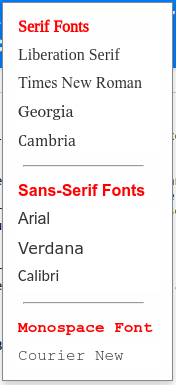
 - To change font styles, in the menu at the top of the page, select
Text > Font Styles...(appears ⇒ on the reader page only). Choices will be saved. - Images are clickable and saveable (right-click).
- Opened books are added to the top of the "Books Viewed" tab in the Bookshelf (when using default sorting; see below).
- To save a particular book, click the "save book" button in the header.
Highlights and notes:
☞ First, select text in a book.
- Click a color to highlight the selected text.
- Click the "edit note" button
 to open a note. Notes are saved as you type. For styling, notes support simple markdown. (Your *asterisked* notes will show up bold in the notes summary, accessible from the header button
  .) Spell check is available under the "Edit" menu at the top of the page.
 - If you don't want a highlight for your note, choose the white highlight color.
- Keyboard shortcuts make editing notes faster. Colors:
yellow,red,green,blue,purple, andwhite. Open or edit a note:n. Delete a highlight and/or note:BackspaceorDelete. (If a highlight has a note, you'll be prompted to confirm.) - Other highlight/note features are about as you'd expect; e.g., click a highlight to edit it.
- To view a summary of all your notes and highlights, click the highlight icon in the page header. Try both the "Highlights" and "Notes" tabs. You can use color circles to filter by color.
- To print or save your highlights or notes in a human-readable format, press the "Copy text" link in the upper right of your note summary, then paste (Ctrl-v or Cmd-v) into a document. (There is no PDF export.) WE RECOMMEND SAVING OFTEN, just in case.
- To export or import data for your highlights and notes, as when you move from one computer to another, see the menu at the top of the page under
File > Import/Export User Data. Highlight and note data is bundled together in one file, according to a standard file format. You can share highlights and notes with any other ZWIBook user, and it should work just fine. - NOTE: You might have to look under the main window for the export, import, print, save, and other system dialogs.
Research features:
☞ First, select text in a book; then right-click on your selection.
- Book search (short selections): searches the ZWIBook database for matching titles and authors.
- Encyclopedia search (short selections): look up a word, name, or short phrase on EncycloSearch and EncycloReader.
- Define (short selections): get definitions from TheFreeDictionary.
- Translate (longer selections): get Google or Bing to translate passages.
- Ask AI to explain (longer selections): we've set up links to Bing and You.com chatbots. Since the AI services are changing constantly, no guarantees this feature will work for long.
Unexpected features:
- Long books and books with many pictures can take a few seconds to load, due to processing. (Processing was not done in advance, in order to preserve your copy of each file without any changes.)
- Merge/Separate lines switch:
 Poetry readers alert! Plaintext books (that is, when Project Gutenberg doesn't have HTML available) were rendered into nicely-formatted text as well as we could manage, by combining lines. Most of these files should look rather good. For some, however, you might want to use the original line breaks: switch to "Separate lines". Books of poetry and song, if such words are in the title, or if the author is on a list of famous poets, do not merge lines, by default.
↑ Search: find books
Features:
- Search book titles, authors, or both. Click in the header: This is not full-text search; for individual books, you can open up the book and use
Text > Find...(Ctrl/Cmd-f) on the page. - Click a book title to go to the book.
- Results are sorted by relevance, but if you press the sort button
 in the header, you can re-sort the results by Author, Title, and Date.
Unexpected features:
- Uppercase "OR" searches are supported. For example, the title search "Hume OR Kant" results in all books by Hume plus all books by Kant. ("AND" is the default; all terms must be in the result.)
↑ Categories: browse collections
Features:
- Browse all the books, organized into 217 Library of Congress categories on all subjects. Click in the header:
- Each primary category links to subcategories.
- Each category and subcategory page displays the number of books available.
- Books within each category and subcategory can be sorted by author, title, or date with the sort button: The default option reverts to the initial order.
- Users can easily search within long book lists using
Text > Find(in the menu at the top of the page), or Ctrl/Command-F.
Unexpected features:
- Some categories pages (especially in literature) have thousands of entries. Sorry about that. Sorting and finding-in-page should help make browsing and locating what you're looking for easier.
↑ Bookshelf: manage your selections
Features:
- To visit your bookshelf, click in the header:
- Switch between "Saved" and "Viewed" tabs.

- Opening any book automatically appends it to the top of the "Viewed" tab.
- Books that you save for later reading are in the "Saved" tab. To save a book, open it and click this button in the header.
- Delete individual books from a list by clicking the trash icon to the right of a title:
 (This does not delete the book from the larger collection.)
 - Each tab has a "Remove All" button that allows users to clear all books from the tab with a single click. The button is displayed when the number of books in the list reaches 20 or more:
- Books can be sorted by author, title, or date with the sort button: The sorting preference is saved and applied automatically on page load. The sort dropdown can be accessed from the header, and the sorting type is highlighted in the dropdown menu.
↑ EPUB, print, and download
Features (open a book, then find these in the File menu):
- NOTE: You might have to look under the main window for the EPUB, print, ZWI export, and other system dialogs.
- EPUB export: If you prefer to read the books on your mobile device, the EPUB exporter is what you want, and this should work offline. Send the EPUB to your favorite book-reading software; it is not guaranteed to work with all, but it does work in the iPhone's Books app and many other EPUB book readers. This is a "beta" feature. While the EPUB should be quite usable, if it is not, and if you ahve an Internet connection, look in the
File > Project Gutenberg book filessubmenu for a direct link to the Project Gutenberg EPUB file. - Save/download a book as PDF: while we have tried to prepare PDFs in a way that is convenient and attractive for reading and printing, your mileage may vary. In some cases, the Project Gutenberg file (see below) might work better.
- Print a book: this should be self-explanatory.
- Note on page numbers: Sorry, but we couldn't figure out how to add page numbers to the generated PDFs. You will have to use another tool to add them yourself.
- Print a book without your highlights: export the book's ZWI file (see below); unzip the ZWI file (using any software that extracts ZIP files); open the HTML by double-clicking; use your browser's print feature.
- Export ZWI: while you can find all the ZWI files in the
/book_zwisfolder, this feature makes it easier to move a copy of a ZWI file to wherever you like. - Open Project Gutenberg files: if you have trouble with a book's formatting, and you are online, you can try one of the files in the
File > Project Gutenberg book filessubmenu. "Read online (HTML with images)" is recommended. (In our opinion, the ZWIBook rendering usually looks and works better than the original, both because of our more consistent formatting and because of our bookmarking system and other features.) - Save as HTML or TXT: Any available HTML or TXT file can be found inside your ZWI file (see above).
- Import and export your highlight and note data: see above.
↑ verify the digital signature of a book ZWI file
To ensure the integrity and authenticity of a ZWI file, follow these steps:
- Grab the `token` from the signature.json file within the ZWI.
- Visit this address: https://did.dara.global/gutenberg/#publish. Copy the `publicKeys`, which is:
{
    "kty":"EC",
    "crv":"P-384",
    "x":"1beexcFBjN6FXYN6Q5mqeOI3N4D2BH3SbP3_81kALR9kW2ZbE5QJ4yCcjE0OcXWy",
    "y":"-jMdfTnpnCCNBrtgFwrluaH5Pz3v0YYNzucC0aezTdxaUrLriisYUAHZrx_b5CD4",
    "alg":"ES384",
    "kid":"did:psqr:did.dara.global/gutenberg#publish"
}
- On https://jwt.io/, drop the `token` into the "Encoded" field on the left.
- Drop the `publicKeys` into the "verify signature" area on the lower right.
- This process establishes that, according to the DID:PSQR and JSON Web Token protocols, only the private key that matches dara.global's public key (at the above address) could have generated that particular token.
- Some further steps can, in a similarly rigorous way, establish that only the same private key could take all the content of the ZWI file as input and generate that token as output.
- Among other info you can confirm in this way, you can discover that Louis generated these ZWI files in December 2023—for which we at the Knowledge Standards Foundation are very grateful!
- For further details about digital signatures in the ZWI file format, visit: https://docs.encyclosphere.org/#/zwi-format?id=signed-zwi-files
↑ why ZWIBook?
- A permanent library in your pocket?! Over 69,000 local copies of books, in the palm of your hand. It's pretty darned cool knowing that, as long as you have this thumb drive, you will be able to access all those books. The fact that you can search and read the books, and highlight and take notes on them, on any computer with the drive just makes it better.
- Anti-censorship. We are preserving (future-proofing, you might say) knowledge in the face of the very real threat of censorship. Having many copies of these thumb drives, with about 70,000 signed book files, helps us as a society to guarantee that there are many copies of the original Project Gutenberg files, as well as of the books themselves.
- AI concerns. Our world is increasingly having to deal with AI-generated text, which makes it possible for unscrupulous people to counterfeit data. Your copy of the Project Gutenberg library is a massive trove of human-written content; the fact that the books are stored offline means your copies are stable and unchanging; and the digitally-signed ZWI format proves they are reliable.
- Hey, this software is actually good! We put in the time needed to make this software usable. Title search is fast and works well. The category feature is useful. The bookshelf lets you highlight particular books in the library and track your reading history. And as far as the reader itself goes, works well: font choice and size, page zoom, bookmarks, find-on-page, and research tools. And, in our tests, the files looked consistently good—sometimes better than the Project Gutenberg originals.
- You're supporting the KSF. Apart from the merits of the software itself, this software supports the 501(c)(3) nonprofit Knowledge Standards Foundation, a small technical organization devoted to spreading free and uncensored knowledge, beginning with encyclopedias, but including other sorts of knowledge as well. Your donation helps keep our mission alive. Thanks!
↑ q&a and troubleshooting
- When I go to save, print, import, or export, the app freezes or doesn't respond. What's going on? It probably isn't freezing. The save (etc.) dialogue appeared under the main window. This is a known bug which we blame on the Electron platform. Sorry.
- How do I read these books on my phone or tablet? If you want to use an ordinary mobile book reading software, you'll need the EPUB (or PDF, if you prefer). ZWIBook v1.1 has built-in exporters for these files. Go here for instructions.
- Why would I want to use ZWIBook to read a book? The advantages of having the copies are obvious, but as to reading, why not read an ordinary book, use the Project Gutenberg website, or download PDFs or EPUB books and use a dedicated mobile reader?—Answer: ZWIBook offers two new and unique advantages. First, it gives you local control over your own bookshelf, bookmarks, and other data. You don't have to work with or depend on Amazon or some other corporation at all. Second, we have constructed ZWIBook so it would be useful as a research system, so it has highlighting and notes as well as neat right-click menu tools. It makes these books locally interactive. And who knows, maybe ZWIBook users will share their notes with each other. On these advantages, see below.
- Hey, that sounds like fun. How can I share my notes with others, or read others' notes? If you're interested in this, let larry@encyclosphere.org and, if there's enough support for the idea, maybe we'll help set up some sort of exchange. Since the highlight and note data format has been reasonably carefully developed, lots of developers could do the same, by the way.
- How can ZWIBook help with research? Let us count the ways:
- All the books are there together in one place and part of one system. It's your own library. That supports all kinds of synchronicity. If you have certain interests that are well supported by historical books (literature, history, philosophy, theology, etc.) you can discover lots, and add it to your own list of books in your Bookshelf, and the copies are yours, not Amazon's.
- Notes! And highlights! And bookmarks! The note-taking system is easy to use, with keyboard shortcuts and many bells and whistles:
- Highlights and notes are nicely collected together in one place (the "highlight" button in the header), which makes reviewing them easy.
- You can use (and filter by) different colors for different purposes.
- You can easily copy and paste your highlights and notes into a document for further editing (find the "Copy text" link).
- You can print your own highlighted version of the text. (Your highlights will appear if you print a book.)
- You can share your notes and get feedback on them from other ZWIBook users (think family, colleagues, students, and teachers).
- You totally own and control your book collection and notes. It isn't on somebody else's server, which keeps your data private.
- Highlights and notes are nicely collected together in one place (the "highlight" button
- Sweet reference tools. Select any text on the page, and in the right-click menu, you get: search for related books; search for encyclopedia articles (using the Encyclosphere!); define words; translate foreign language; and ask an AI to explain.
- Find in page makes it easy to find all instances of certain words or phrases.
- Can I move the books files from the flash drive to my computer? Of course. Notes/instructions:
- While you might be tempted to drag-and-drop, and while that might work, be aware that it is an enormous collection. Make sure you have at least 125 GIGABYTES of free space before you start.
- If you are not using special software, do not touch the process once it starts, even it takes hours (which it probably will).
- It might be better to use the command line to make the transfer, if you (or a friend) know how, or else some special file transfer software.
- Once you have made the transfer (the directory you put the books in must be named "book_zwis"), you'll want to tell ZWIBook where the files are:
- Take note of where the directory you just made is.
- Select
File > Reset Books Locationin the menu at the top of the app. - Find the directory, click on it, and press "Open".
- If all has gone well, you should see the same books. Doing this does not move your highlights or other personal data.
- How do I back up my bookshelf, bookmarks, highlights, and notes? RECOMMENDED. It's a good idea to back up this data, especially if you work on it much. Look above under Highlights and notes; see To export or import data.
- How do I export a ZWI file, and why might I want to? In the menu at the top of the page, go to
File > Export ZWI. This is just the original book (your highlights are not included in the file). This is a type of ZIP file; so, however you unzip files, do that. Inside you'll find the original TXT and, if there is one, an HTML file. Once unzipped, just click on the HTML file, and it should look nice in an ordinary browser like Brave, Firefox, or Chrome. If it doesn't, the problem might be with the original Project Gutenberg file (we have not edited the TXT or HTML). - What do I do if a book I want to read is so badly rendered by ZWIBook that it is unreadable? We have checked many books and fixed all bugs we found, so this is unlikely to happen. But we have not checked all 69,000 files, so we concede it is possible. Sorry about that if it happens to you. You have many options:
- If you can get on the Internet, you can read the copy on the Project Gutenberg website. In ZWIBook, you can navigate to the book you want to read, then, in the menu at the top of the page, select
File > Project Gutenberg Book Files. You can choose from a variety of formats. - If you want to read your own local copy, you can export the ZWI file. See the previous question.
- You can email larry@encyclosphere.org and tell Larry about the problem. He might fix the code if he has time. DO NOT contact Project Gutenberg unless you have looked at the corresponding PG page (see under the File menu), and you see that the problem is with the original PG file.
- If you can get on the Internet, you can read the copy on the Project Gutenberg website. In ZWIBook, you can navigate to the book you want to read, then, in the menu at the top of the page, select
↑ notes and disclaimers
- The books should be well-rendered, but this is not guaranteed. We took great care to craft the ZWIBook software, which you are using now, to render the books in a fairly standardized, readable format, while retaining most of the original design of the book files. Standardizing did involve actually overriding some of the CSS of the original files. It should not have touched the content, but we have not confirmed that this is the case with every file. Some design errors might still remain, but they should be relatively few. If you come across a book with moderate or serious design errors, especially if it is entirely unreadable, please email larry@encyclosphere.org with details. DO NOT contact Project Gutenberg unless you have looked at the corresponding PG page (see under the File menu), and you see that the problem is with the original PG file.
- All the ZWI files are there. We guarantee that the book ZWI files were included in the
/book_zwisdirectory shipped out on the original Knowledge Standards Foundation thumb drives. - Software presented "as-is." We do not make any specific guarantees about the ZWIBook software, which you are presently using. It is offered as a "thank-you" gift for contributions to the Knowledge Standards Foundation. ZWIBook is presented "as-is" and is not guaranteed to be free of defects or to be fit for any particular purpose. Although it was thoroughly tested on Linux, Windows, and Mac, we cannot guarantee it to work properly on every system. We also cannot guarantee that it will continue to work forever, as operating systems are updated.
- The HTML styling in the app has been changed slightly from the Project Gutenberg original. The books presented here are modified from the original files found at https://www.gutenberg.org, including updated formatting, changes to the layout, and other modifications to enhance readability on the ZWIBook application. None of the words in the books should be changed.
- KSF has no relationship with Project Gutenberg.The Knowledge Standards Foundation does not have any relationship with Project Gutenberg. We have discussed this project with their current CEO, Greg Newby, and double-checked that we have permission to use the collection for our fundraising.
- We have respected the Project Gutenberg license. We have distributed versions of the Project Gutenberg files in the ZWI format in the belief that our doing so satisfies the Project Gutenberg license, which we have carefully read, and which is to be found at the bottom of every Project Gutenberg file (and as can be found in our copies of these files).
- The gist of the PG license. To adapt the Project Gutenberg summary license: "The eBooks in this collection are for the use of anyone anywhere in the United States and most other parts of the world at no cost and with almost no restrictions whatsoever. You may copy them, give them away or re-use them under the terms of the Project Gutenberg License included with each eBook or online at www.gutenberg.org. If you are not located in the United States, you will have to check the laws of the country where you are located before using these eBooks."
- Authors. The real authors are the authors of all these wonderful books, and the real organizer is Michael S. Hart, whose historically important work in founding Project Gutenberg we are only making more accessible. Distributed on a 128GB thumb drive, ZWIBook is a bespoke software solution written by Larry Sanger with the help of AI tools, with assistance from Henry Sanger. We thank "BGNLouie" for converting the entire (as of December 2023) Project Gutenberg database into the ZWI format. The person primarily responsible for crafting the ZWI file format is Dr. Sergei Chekanov, although there were additions or direction given by Henry Sanger, BGNLouie, Larry Sanger, and Shelly Warren.